
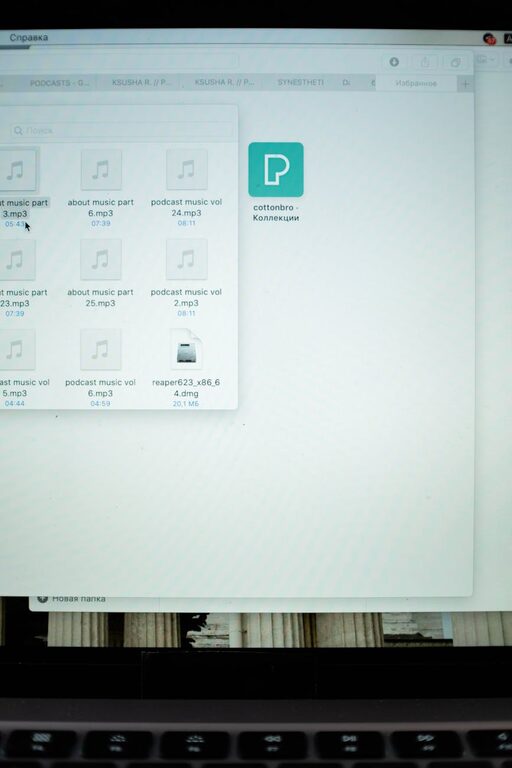
Keeping your computer files organized can save you time, reduce stress, and improve your overall productivity. Whether you’re managing work documents, photos, or software, having a clear and consistent system for your files is essential. In this post, we’ll share practical tips and strategies to help you organize your files efficiently and maintain order on your computer.
Why Organizing Files Matters
Before diving into the tips, it’s helpful to understand why organizing files is important:
– Easy Retrieval: Quickly find the files you need without searching for hours.
– Improved Productivity: Spend less time managing files and more time working.
– Better Backup & Security: Makes it simpler to back up important data regularly.
– Reduced Clutter: A tidy digital workspace helps reduce distractions.
With these benefits in mind, let’s explore how to organize files effectively.
1. Create a Clear Folder Structure
Having an intuitive folder hierarchy is the foundation of good file organization.
Start with Broad Categories
Begin by creating main folders based on large categories such as:
– Work
– Personal
– Finances
– Photos
– Projects
Use Subfolders for Specific Topics
Within each main folder, add subfolders to break down content into smaller groups. For example, under “Work,” you could have:
– Reports
– Presentations
– Meeting Notes
Try to keep your folder structure no more than three or four levels deep; this keeps it simple without becoming overwhelming.
2. Use Descriptive File and Folder Names
Clear naming helps you quickly identify the contents without opening the file.
Tips for Naming
– Include dates in a consistent format (e.g., YYYY-MM-DD)
– Use keywords describing the content (e.g., “Budget_Report_2024”)
– Avoid vague names like “Document1” or “Untitled”
– Don’t use spaces; instead, use underscores (_) or dashes (-)
A good file name might be: `2024-06_ProjectProposal_ClientA.pdf`.
3. Regularly Sort and Delete Unneeded Files
A cluttered hard drive slows you down. Set a schedule—weekly or monthly—to review and clean your files.
How to Decide What to Delete
– Remove duplicates or multiple versions you no longer need
– Delete temporary files or downloads you’ve already used
– Archive older projects you may want to keep but don’t access frequently
By maintaining this habit, your computer will stay organized and more efficient.
4. Use Tags and Metadata When Possible
Some operating systems allow tagging or categorizing files beyond folders.
Benefits of Tags
– Quickly group related files across different folders
– Add keywords to enhance searching
– Create virtual collections without moving files
For example, you can tag photos with “Vacation” or “Family” regardless of their folder location, helping with quick retrieval later.
5. Utilize Cloud Storage and Syncing
Consider using cloud-based services like Google Drive, OneDrive, or Dropbox.
Advantages
– Access your files from any device
– Automatic backup protects against data loss
– Share files or folders easily with others
When setting up your cloud storage, apply the same organization principles to keep it consistent with your local files.
6. Back Up Your Files Regularly
Organized files are valuable, so back them up to avoid losing important data.
Backup Options
– External hard drives
– Cloud backup services
– Network-attached storage (NAS)
Automate backups if possible to ensure it happens consistently.
7. Use Search Tools Effectively
Even with good organization, sometimes you need to find a file quickly. Learning to use your computer’s search functionality well can save time.
Search Tips
– Use keywords from your naming system
– Filter by file type or date modified
– Use wildcard characters if supported
Combine organization with powerful searching for best results.
8. Keep Your Desktop Clean
Avoid cluttering your desktop with too many files or shortcuts.
Tips for a Clean Desktop
– Use folders on the desktop to group files temporarily
– Move completed tasks or old files to their appropriate folders
– Use your desktop primarily for things you’re actively working on
A clutter-free desktop helps keep your focus and improves computer performance.
9. Automate File Organization When Possible
Some software tools can help automatically organize or rename files.
Examples
– Photo managers that sort by date or location
– Automation apps that move files from downloads folder based on rules
– Scripted batch renaming tools for consistent file naming
Automation saves time and keeps your system tidy without much manual work.
Conclusion
Organizing your computer files doesn’t have to be a chore. By creating a clear folder structure, naming files thoughtfully, deleting what you don’t need, and backing up regularly, you can maintain a clean digital workspace. Incorporating these tips into your routine will help you find information faster and work with greater ease and confidence.
Remember, organization is an ongoing process—making small improvements regularly will lead to big benefits over time.
—
We hope these tips help you transform your file management habits. Feel free to share your own file organization strategies or questions in the comments below!